
A Simulink® model needs hardware-specific S-Function driver blocks to talk to external hardware. This means that an engineer may have to maintain two different models: one for simulation and one for code generation. For code generation, Simulink source and sink blocks need to be replaced with input and output hardware-specific S-function blocks.
SimWB alleviates the need for hardware-specific S-function blocks by providing complete I/O independence through the Real-Time DataBase(RTDB). The RTDB holds the information necessary to configure I/O boards and data bus protocols. I/O boards are configured outside the model programs, and data acquisition is performed via external I/O tasks which store and retrieve data values through the RTDB.
The
For MATLAB® versions R2019a and earlier, in the Simulink model,
on the menu bar select:
For MATLAB versions R2019b and later, in the Simulink model,
the MLToolkit GUI can be accessed as shown below:
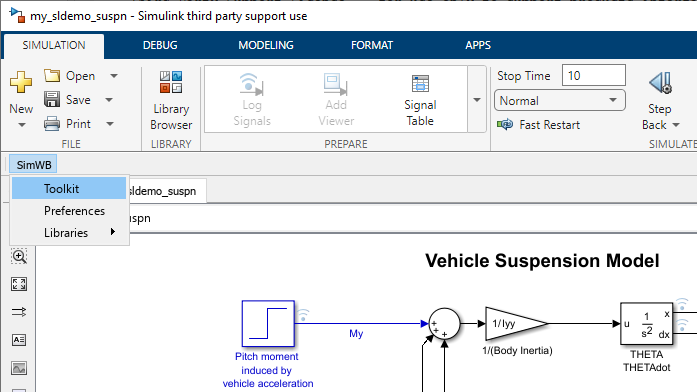
The Graphical User Interface (GUI) will open on the Simulator Access tab.
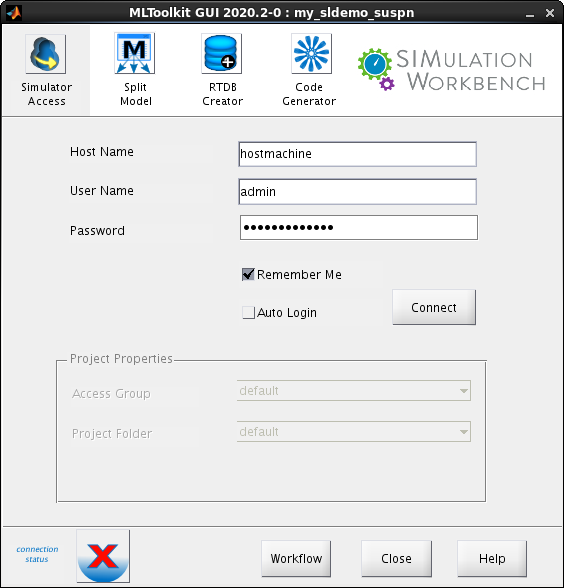
Enter the real-time host name, i.e., a domain name or an IP address as a string in the form
Enter the username of user authorized to access the SimWB real-time host. This is not the same as a Linux user on the real-time host.
SIMulation Workbench user's password.
Remember the most recently used real-time host name, username, and password across program invocations. These fields are only stored upon a successful connection to the real-time host. The saved password is cleared when this checkbox is unchecked.
Connects to and logs into the real-time host using the stored credentials.
If the login data becomes obsolete, then use the editsimwbpref command to update
the login information or turn off this option.
For more information,
type editsimwbpref at the MATLAB command prompt.
Connects to and logs into the real-time host using the supplied credentials.
When the Simulink model is closed, the connection between the MLToolkit GUI
and the real-time host is terminated.
Upon successful connection and user authentication with the real-time host.
The connection status icon changes from:
 to
to

|
Note:
Upon successful connection, |
Authorized users are given access to resources on the real-time host, and this access is restricted with groups. Users having access to a particular group can access only resources belonging to that group. Users may belong to multiple groups, and the Access Group option allows them to share the RTDB and the generated code only with other users belonging to the selected group. The Project Folder list will be filtered based on the selected Access Group.
Authorized users are given access to resources on the real-time host, and this access is restricted with
groups.
Users having access to a particular group can access only resources belonging to that group.
The Project Folder is one such resource.
Users may belong to multiple groups, and each access group will have access to a set of project folders.
The Project Folder list will be filtered based on the selected Access Group.
The RTDB and the generated code created with the ML Toolkit will be placed in the selected Project Folder.
The Project Folder list is configured using the
Use this tab to split a multi-level model into separate models. For more information regarding this tab, see this example.
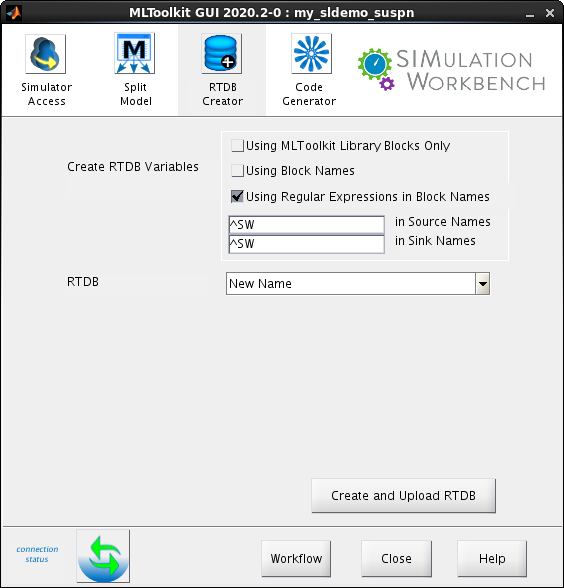
These options specify which blocks in the Simulink® model will be mapped to RTDB variables. The Simulink® model's source and sinks blocks that have mappings to the RTDB variables can access external hardware via the RTDB on the real-time host. Use any combination of the following mechanisms to map Simulink source and sink blocks to RTDB variables:
This option specifies mapping all the supported source and sink blocks to RTDB variables having the same name.
Note:
|
This option specifies mapping those source and sink blocks to RTDB variables whose block names match specified regular expressions. You can use different regular expressions for sources and sinks. Project guidelines typically dictate the name of sources and sinks which are to be accessed externally. Using regular expressions exempts you from renaming blocks of interest, which was required in releases prior to SimWB 4.3.
Use this option when:
To map blocks with:
Note:
|
For more information regarding searching a model using regular expression, type doc find_system
at the
MATLAB command prompt.
To generate a table of block names and the corresponding RTDB variables, see Generate List of Blocks that Map to RTDB Variables.
Name of the RTDB on the real-time host. Enter a new name or select an RTDB already existing on the real-time host.
This button creates the RTDB variable definitions from the Simulink model and uploads them to the specified RTDB on the real-time host. To control the pattern used to name the RTDB variables, specify the appropriate options in the RTDB tab of the SIMulation Workbench Preferences GUI.
A signal.db file containing the RTDB variable definitions for this model is created in the current working directory for review.
If the RTDB already exists on the real-time host, then you can use one of the following options:
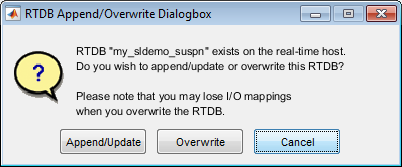
| Note: Only RTDB variable definitions which have been modified are overwritten in the RTDB on the real-time host. These overwritten RTDB variables lose their I/O mappings. |
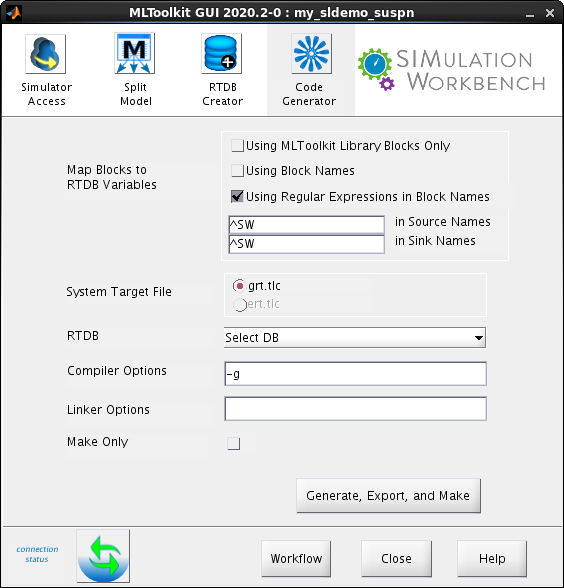
Specify the model blocks to be replaced with RTDB variables. Use the same mechanism as Create RTDB Variables.
Select an RTDB on the real-time host. Ideally, this is the RTDB created from the Simulink model itself. At least one of the source or sink blocks in the Simulink model should map to an RTDB variable in the selected RTDB.
Additional options to pass to the compiler. Examples: -g,-Wall, -I
Additional options to pass to the linker. Examples: -l,-s
When this option is checked, only a Make command is issued to the real-time host. This option is useful when SimWB compliant code is already present on the real-time host and the code is to be re-made on the real-time host.
Generates code for the Simulink model, packages the source code into a .ZIP file, exports the .ZIP file along with the .MK file to the real-time host, and uses the GCC compiler to create a SimWB compliant executable on the real-time host.
The code is generated using the Generic Real-Time target (grt.tlc). The packaged code can be found in the RTW.Sources folder of the relevant project on the real-time host.